
The configurator renders on your storefront through Shopify's theme editor — no code changes to your theme files.
The product page block
- On the app's Home screen, find the setup step "Add the configurator to your theme" and click Open theme editor. Shopify's theme editor opens with the Custom Product Options block (listed under Pretty Product Options) already selected on your product template.
- Drag it where you want it (usually where the variant picker and Add to cart normally sit).
- Click Save in the theme editor.
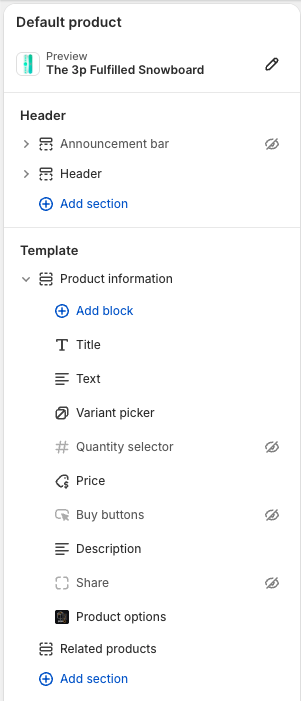
The block replaces the standard Add to cart flow on connected products only — products without a connection to the app are completely untouched.
Several features — the cart buttons, collection price previews and card swatches — ride on the app embed rather than the block. Turn it on once:
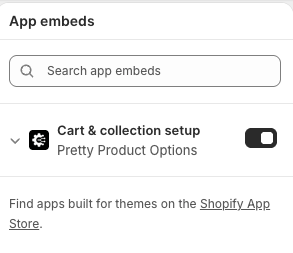
Popup mode
Prefer to keep your product page compact? The app embed supports a popup style: shoppers see a "Configure" button, and the configurator opens in an overlay. Look for the display style setting on the embed.
Collection page price previews
With the app embed enabled, collection pages get a preview bar: shoppers set their options once and every connected product's card shows a live "From" price computed from that product's own pricing rules. One batched request prices the whole page; the values are remembered as they browse — no account, no cart needed. Products without options keep their normal theme price.
Set it up in the app: Settings → Collection pricing.
- Design the bar as a template. The bar's controls are just options on a regular template — create one ("Create bar template") and design it in the template editor like anything else: number options become inputs, choice options become dropdowns, a single-choice option shown as a checkbox becomes a checkbox (e.g. "Motorised"). A live preview on the settings page shows exactly what shoppers will see.
- Pick a collection (or "All collection pages" for the default) and choose which bar template powers it.
- Assign each control to the right option on each product. You'll see all the collection's products; for each one, choose which of its options each control fills. "Auto" matches by key — usually all you need when your templates share key names.
Products without options keep their normal price, so one bar works across a mixed collection. If you define no fields at all, the bar falls back to built-in width/height inputs (configurable on the app embed in the theme editor, including per-country units like US=in, DE=mm).
Placing the bar. By default it appears at the top of the collection area automatically. To put it exactly where you want — the filter sidebar, above the grid, between sections — add the Collection price bar block in the theme editor (it appears wherever your theme accepts app blocks). The block has a Stacked layout option that fits sidebars; when the block is placed, the automatic placement steps aside.
Preview defaults: on the Products page, each connected product has a Preview defaults button — the size and selections its card price assumes (e.g. which fabric the "From" price uses). Shopper-entered sizes always override the default size.
Different option names? The size bar automatically fills options named width and height. If a product's size options are named something else (say drop or panel_width), open its Preview defaults and set "Shopper's Width fills" / "Shopper's Height fills" to the right options — then that product's formula receives the shopper's size correctly.
This is a genuine conversion lever for made-to-measure stores: shoppers compare real prices for their window instead of meaningless "from" prices.
Storefront theme bindings
The configurator has to find parts of your theme it did not build: the price to update, the Add to cart button to disable, the variant field to read. It guesses using the names the common themes use — and on a theme that names something differently the guess misses silently. Nothing errors; the feature just does not happen.
The usual sign is a product price that never changes while the configurator prices correctly beside it.
Settings → Storefront theme bindings is where you correct that. Seven selectors, each with its built-in default visible and a Use default tickbox:
| Binding | What we do with it |
|---|---|
| Current price | Overwrite with the configured total once every required question is answered |
| Compare-at price | Hide it while a configured total is showing — it describes the plain variant, so a struck-through figure beside a configured price is a saving that does not exist |
| Product form | Intercept its submit, so a configured line is added instead of the bare variant |
| Add to cart button | Disable it while required questions are unanswered; hide it when your own button replaces it |
| Buy now button | Hidden whenever the configurator is priced — it posts straight past the cart and cannot carry a configured price |
| Variant field | Read which variant is being configured, and re-price when the shopper switches |
| Quantity box | Read it so price formulas can use qty, and re-price when it changes |
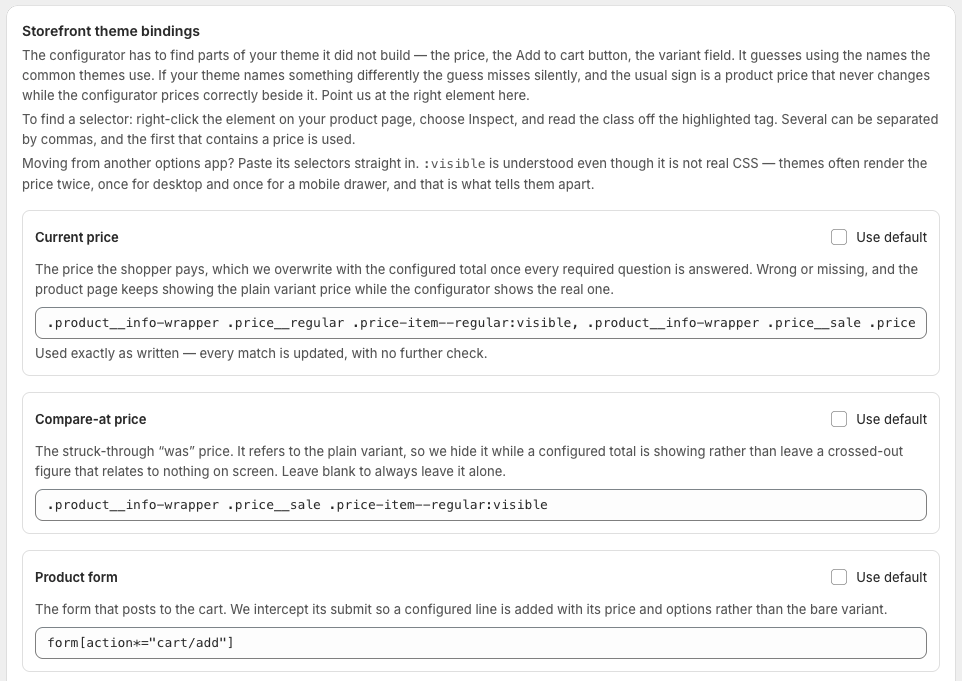
Leaving one ticked stores nothing. That matters: it keeps following the built-in default, so when we improve a guess it reaches you. Untick only what you actually need to change.
Finding a selector
Right-click the element on your product page, choose Inspect, and read the class off the highlighted tag. Several can be separated by commas and the first one containing a price is used.
Moving from another options app? Paste its selector list straight in.
:visible is understood even though it is not real CSS — themes often render
the price twice, once for desktop and once for a mobile drawer, and :visible
is what tells them apart.
Switching or updating your theme
The block travels with your theme settings. If you install a new theme, add the block to it before publishing (the same Open theme editor button works — or add the Custom Product Options block manually in the theme editor). Your templates, prices and design themes all live in the app, so nothing else needs to change.
Checking it worked
Open a connected product on your storefront:
- You should see your sections and options instead of the standard variant picker.
- The price should update as you change options.
- Adding to cart should show the configured details on the cart line.
If any of those don't happen, see Troubleshooting. It is almost always the block not being placed or saved — and if everything works except the product page price, it is the Current price binding above.