
Not every made-to-order sale is self-serve. These tools (Pro plan) cover showroom, phone and trade sales.
Quotes & pay-by-link
Any configuration can become a quote: a Shopify draft order with the exact configured details and price, and an invoice link the customer can pay directly.
Typical flow: a customer calls or visits, you configure the product with them (or they send you a shared link), you send the quote, they pay from the emailed link — it lands as a normal Shopify order with all the specs attached.
The draft-order builder
The Draft orders page in the app is your assisted-selling desk. Pick a connected product, configure it with the exact same configurator shoppers use (live price included), click Add to draft, and repeat — mixing products freely. Set quantities, then send it one of two ways:
- Invoice link — a real Shopify draft order. Prices are locked at what you configured; the customer opens the link and pays. Best for agreed quotes.
- Editable cart link — the same items land in the customer's own cart, priced at your current rules, and they can edit any line (the cart's edit popup), adjust, and check out themselves. Best for "here's a starting point" conversations.
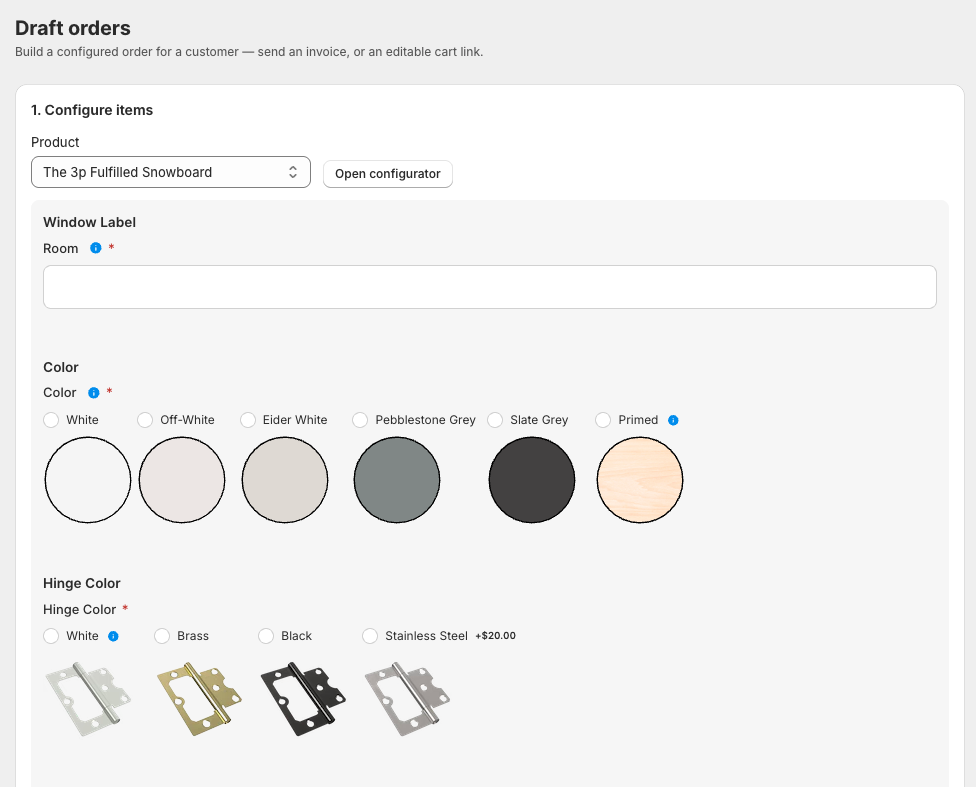
Prices in both paths are recomputed and signed server-side when you create the link — the builder's running total is an estimate of exactly that.
Share links
Shoppers can save and share configurations:
- Save keeps a configuration for later (works for anonymous shoppers too — it's remembered in their browser).
- Share creates a link. The recipient sees the exact configuration, can tweak it, and can buy.
If your prices changed since the link was created, the recipient sees the current price with a small "price updated" notice — you'll never accidentally honor an outdated price.
Share a whole cart
Enable "Share this cart" on the app embed (theme editor → App embeds) and a share button appears on the cart page — its text and colors are yours to set. Clicking it generates a link the shopper can copy and text or email; whoever opens it gets a copy of that exact cart rebuilt in their own browser — configured items are re-priced and re-signed at your current rates, so shared links can never smuggle in stale prices. Great for "can you order this for me?" moments, gift lists, and trade reps building carts for clients.
Saving and sharing a cart
Save this cart and Share this cart live on the cart page and in the cart drawer. Set them up under Settings → Cart buttons — the wording, the colours, the placement and whether each one appears at all.
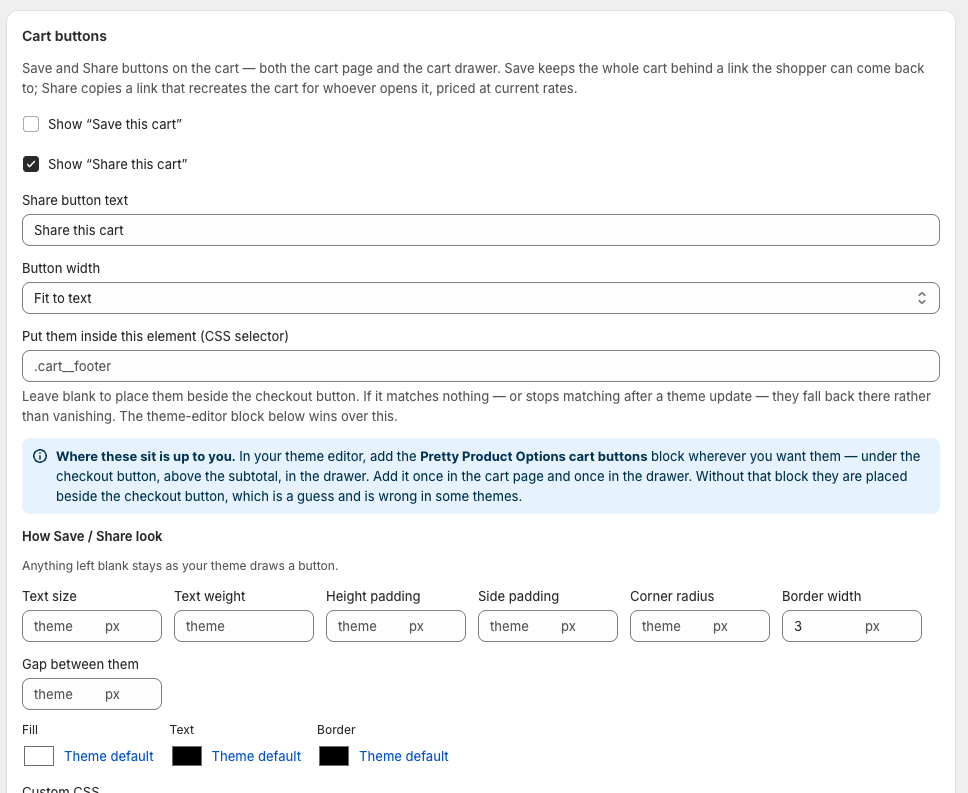
Sharing also saves. Someone who sent their configuration to whoever is paying wants it back at least as much as someone who pressed Save, and before this a shared cart existed only as a link in somebody else's clipboard — invisible to the shopper and to you. Both buttons now record the cart.
What still differs is the link. Only Save marks it as the shopper's own, so a recipient opening a shared link gets the cart without it landing in their saved list — they wanted the cart, not a new entry in their list.
Signed in, a saved cart appears under their saved carts on any device. Signed out, it is still recorded for you, and the link is their way back to it — which is what the dialog says, rather than promising an account they do not have.
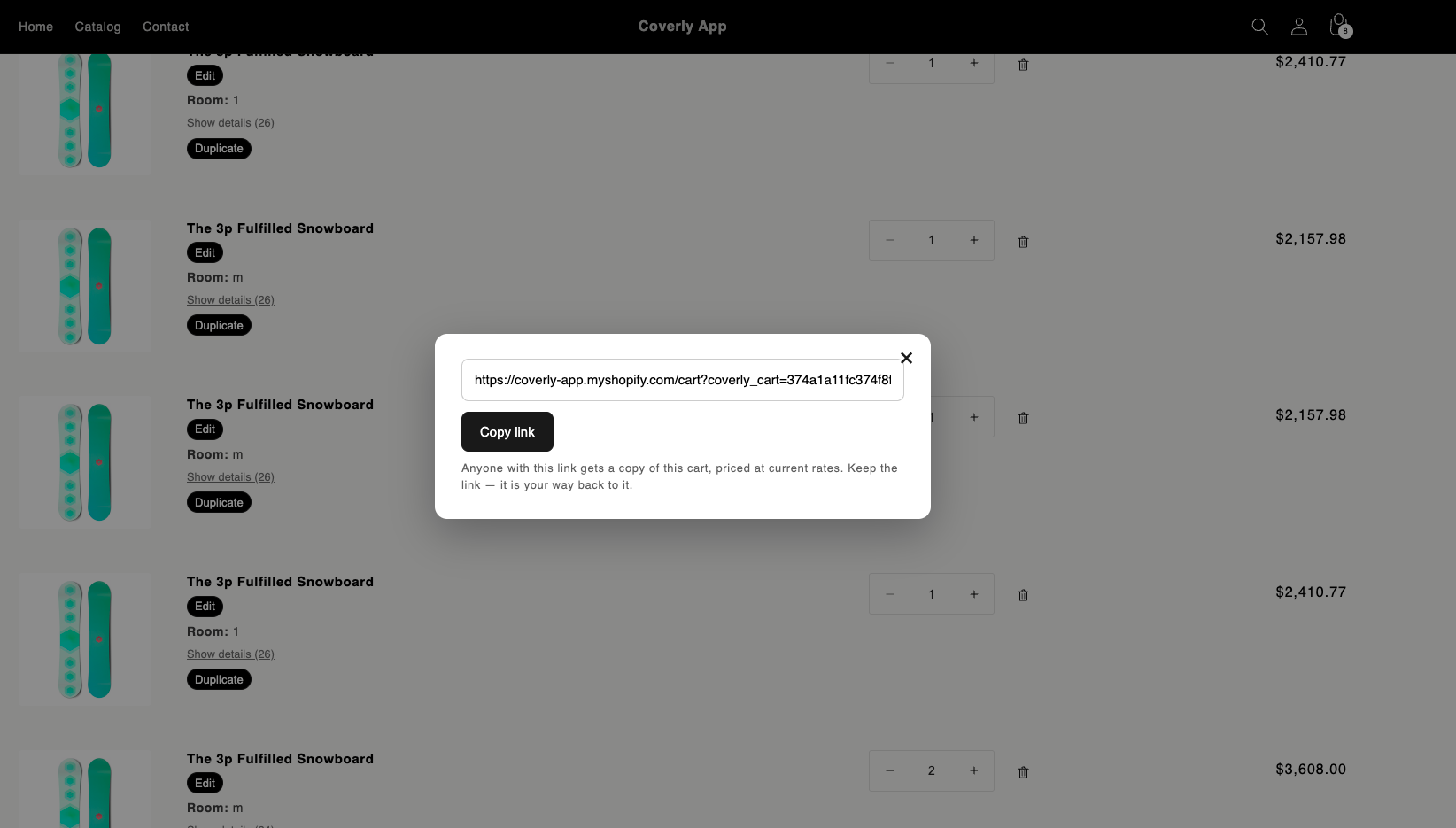
Opening a saved or shared link
If the shopper's cart is empty, the link loads straight in.
If they already have something in their cart, they are asked once:
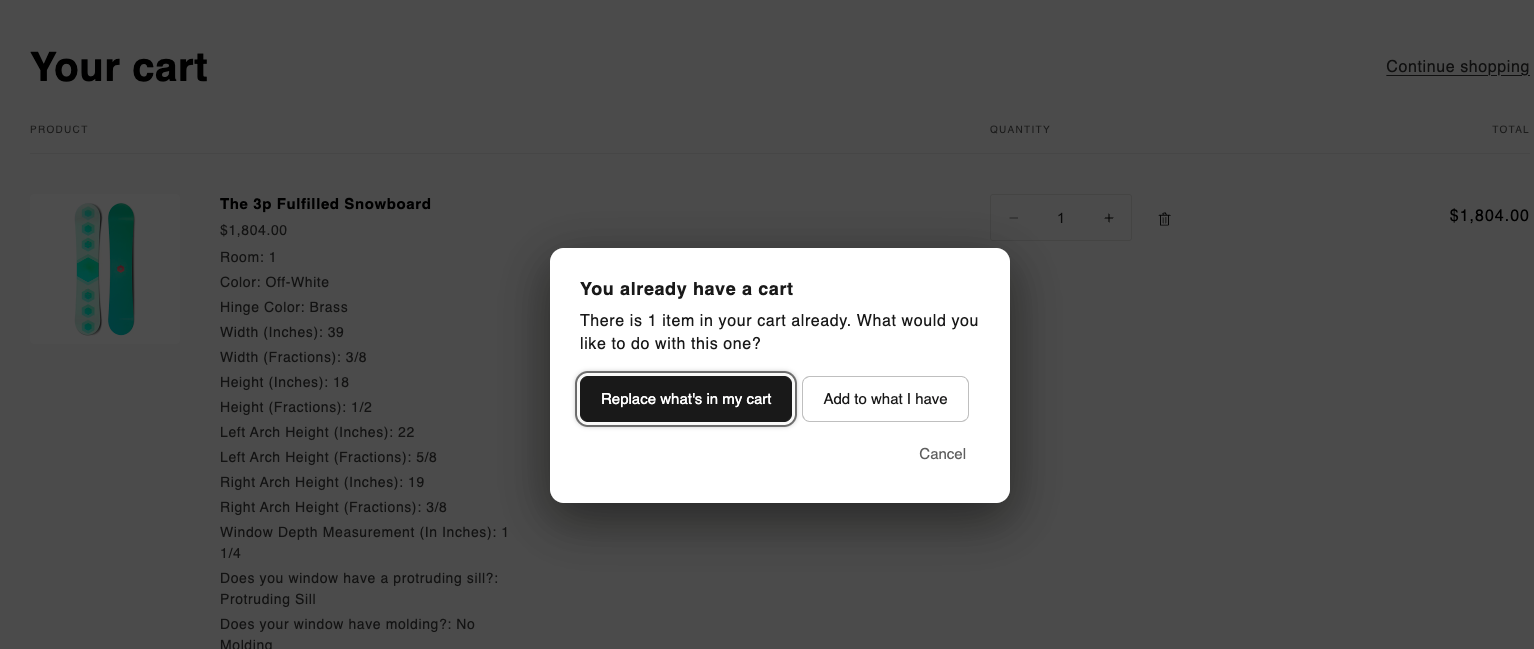
Replace empties the cart first, then rebuilds. Add keeps what was there. Cancel changes nothing and leaves the link usable, so they can come back to it.
This exists because loading a link used to always add — so reopening your own saved link, or opening it on the device you saved it from, gave you every line twice, priced and ready to check out, with nothing on screen saying so.
Finding one again
Every saved cart lands on Saved carts in the app, with what the shopper chose, what they were quoted at the time, and the link that rebuilds it.
Once there are more than a screenful, the filters are the point:
- What they chose searches the option names, the answers and the product
titles across every line. Several words must all match, so
master whitefinds the cart that is both rather than every cart that is either. - Cart total from / up to narrows by what they were quoted.
- They combine. "Anything over £2,000 with blackout fabric" is two fields.
How many are kept
Saved carts are shoppers' personal data, so the app does not keep them indefinitely:
- The shop keeps its 500 most recently opened carts. As newer ones arrive, the ones nobody has opened in longest drop off.
- Everything is deleted twelve months after it was last opened. Opening a cart restarts that clock, so a lead you are still working is never on it.
Keep this cart on any cart exempts it from the 500 — it will not be crowded out by newer ones, however many arrive.
It does not exempt it from the twelve months. That window is what your privacy policy tells your shoppers and what Shopify's protected-customer-data review was told, and a checkbox in an app is not a reason to keep somebody's data longer. If you need a configuration for good, open it and place the order, or copy the details somewhere that is yours.
Emailing the link
Email me the link — or anyone else the shopper names — is off until you have built the Shopify Flow that sends it. The app does not send the mail: it hands Flow an event and your own workflow sends it, so the wording and the sending domain belong to your shop. Shopify accepts a trigger with no workflow behind it and silently drops it, which is why the button stays hidden until you say the Flow exists.
The field is not pre-filled even for a signed-in shopper: "send it to my wife" is at least as common as "send it to me".
Customer groups
Groups give different customers different treatment, keyed off Shopify customer tags (which you already manage in Shopify admin):
- In Customer groups, create a group — e.g. "Wholesale" tied to the tag
wholesale. - In the template editor, options and choices can be visible only to certain groups, and choices can carry group-specific prices.
A logged-in customer tagged wholesale then sees the trade catalog at trade prices; everyone else sees retail. Same configurator, same template — no duplicate products.
What shows up on orders
However the sale happens — self-serve, quote or shared link — the order carries the human-readable configuration on the line item, and the full technical spec is stored in the app. See How checkout & orders work.