
The short version
Shoppers use your normal Shopify checkout — Shop Pay, discount codes, taxes, everything. The app doesn't replace checkout; it safely delivers the configured price into it. You don't need Shopify Plus.
How the price gets there
When a shopper adds a configured product to the cart:
- The app's server calculates the price from your published rules and stamps the cart line with a tamper-proof signature.
- At checkout, a Shopify-side check verifies that signature and applies the price.
- If anything doesn't match — say someone edited the page to change the price — the price simply isn't applied.
The practical takeaway: shoppers cannot manipulate their own price, and there's nothing you need to configure — the "Checkout connection" on your Home screen is set up automatically at install.
What you'll see on the order
Each configured line item shows the shopper's selections (Width, Height, Fabric, …) right on the order — visible to you, your staff and your fulfillment apps. Line items also carry a few internal fields starting with _ (like _config_id and _sig); those are the signed price and the link to the full specification — please don't edit them. Shopify hides them from your customers automatically, and Configured details in your emails covers how to check that and how to put the selections on your order confirmation and packing slip.
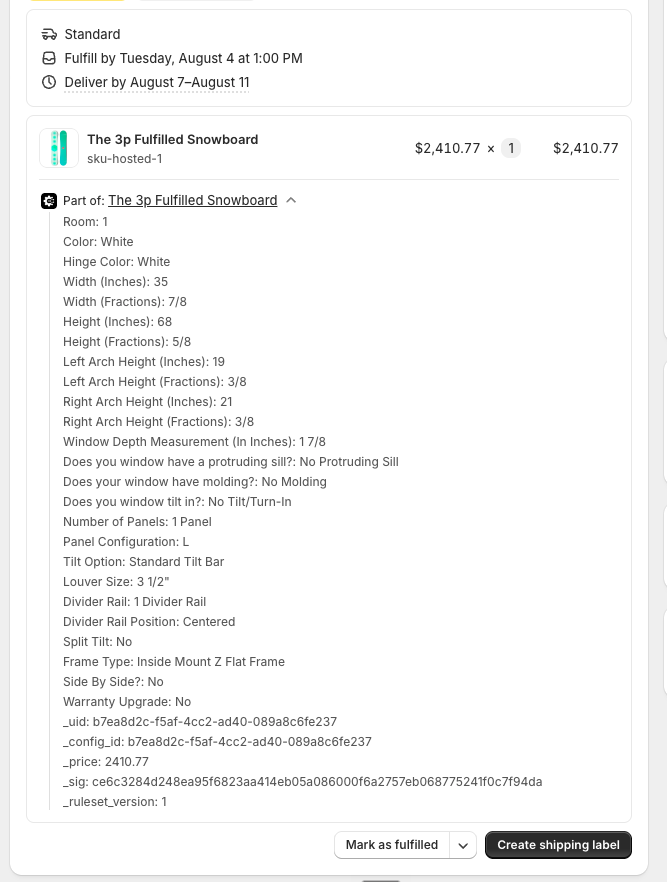
Need the full technical spec for manufacturing? Every order line links to a saved configuration in the app with the complete selections, price breakdown, and which price version was used.
Editing, duplicating & quantities

Configured cart lines get Edit and Duplicate buttons. You control how they behave on the app embed (theme editor → App embeds):
- Edit — opens the full configurator in a popup right on the cart page (default), with everything pre-selected; or, if you prefer, it can send shoppers to the product page instead. Saving swaps the old line for the updated one.
- Duplicate — three modes: add a copy to cart instantly (one click, price re-checked and re-signed server-side), open the product page prefilled so they can tweak the copy, or let the shopper choose from a small dropdown (default).
- Button styling — the text on both buttons and their colors (background, text/border) are embed settings, so they can match your theme.
Ordering 3 identical items is just quantity 3 on one line.
SKUs on the order line
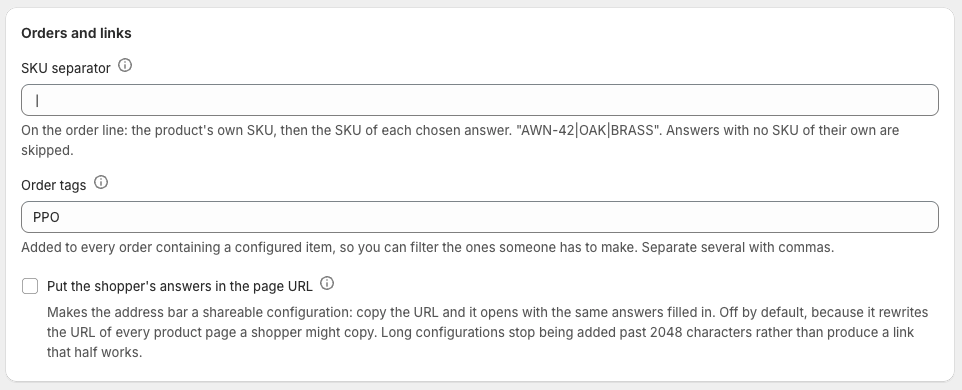
An answer can carry its own SKU — a fulfilment code for that specific choice. When it does, the order line gets a combined code: the product's own SKU, then each chosen answer's, joined by a separator you set under Settings → Orders and links.
AWN-42|OAK|BRASS
It is a visible line property on purpose. Shopify hides underscore-prefixed properties from the packing slip, and a fulfilment code the warehouse never sees is not a fulfilment code.
It only appears when an answer actually contributed one — a line carrying just the product's own SKU tells a picker nothing the order did not already say.
Tagging the orders someone has to make
A shop selling made-to-measure alongside stock items has two completely different fulfilment paths and, in the admin, one undifferentiated list of orders. There is nothing to filter on: a configured line looks like any other until you open it.
Settings → Orders and links → Order tags puts a tag on every order containing
a configured item. PPO by default; separate several with commas to tag by
workflow instead ("Made to order, Workshop"). Clear it to tag nothing.
If you are moving from another options app and have Flow rules or saved searches keyed on its tag, type that tag here and they keep working.
Refunds & cancellations
Handle them exactly like any Shopify order — refunds, cancellations and partial refunds all work normally. The app keeps the configuration record either way, marked with its order status.