
A made-to-measure catalogue is usually one product per shape, with all the variety living in the options. Which means a collection page is a row of near-identical photos, and nothing tells a shopper that the second one also comes in oak, brass and walnut. Shopify's own swatches only understand variants, so they show nothing here.
Card swatches put that row of colours back under each product card.
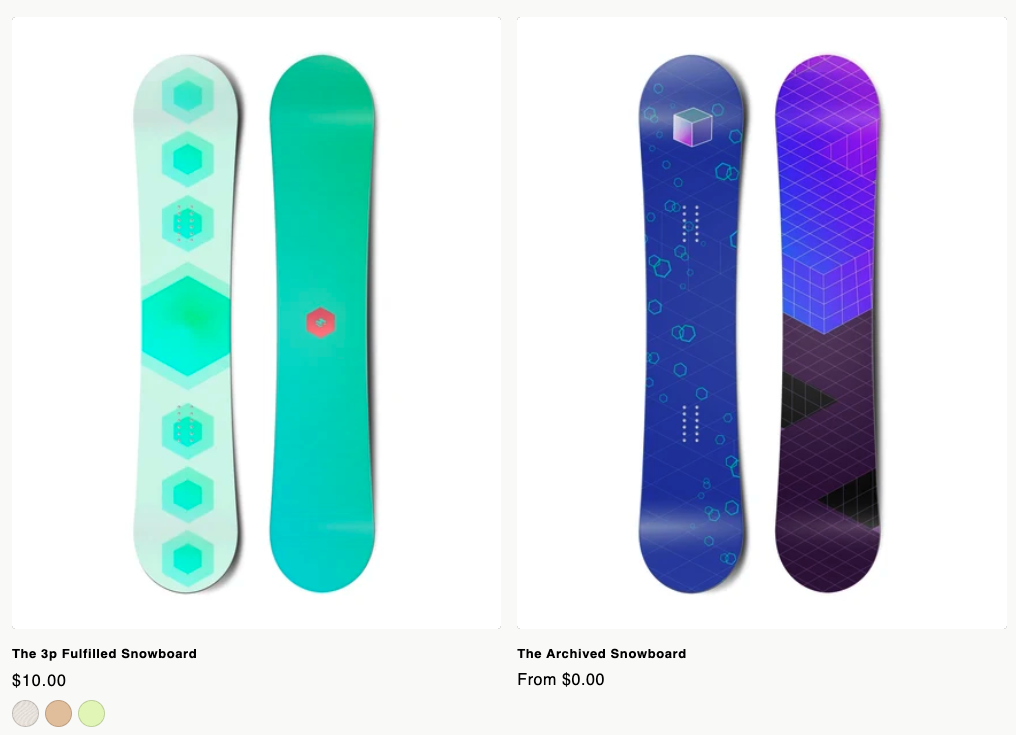
Turning it on
Two things have to be true.
- The app embed is enabled. Theme editor → App embeds → Cart & collection setup. This is the same embed the configurator and the cart buttons use, so if those already work you are done.
- The option set says what to show. Open the option set and scroll to Card swatches, near the bottom.
It is off by default, because it writes into pages you did not ask us to touch.
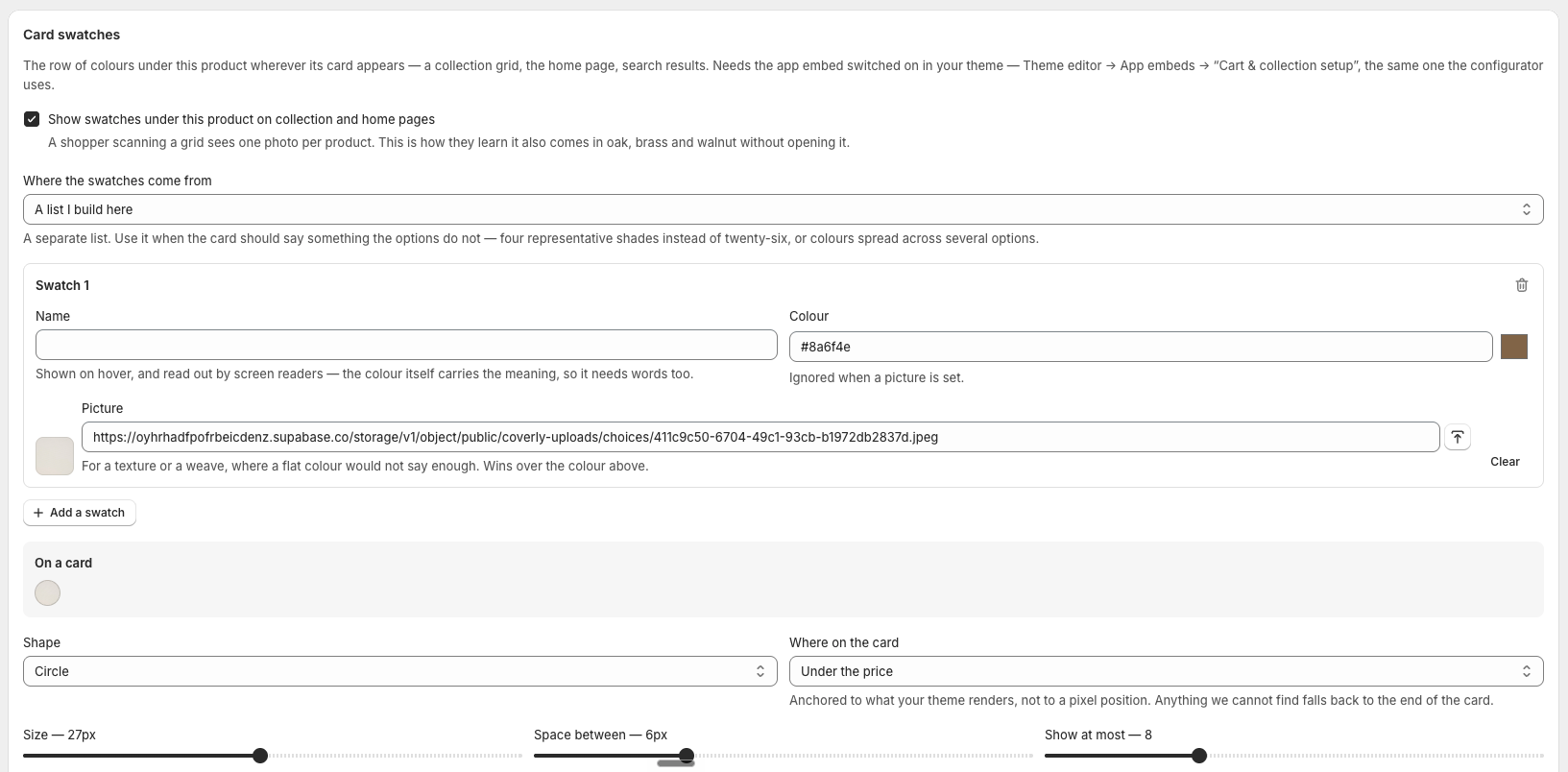
Where the swatches come from
An option's answers — the one to reach for. Point at an option you have already filled in and its answers are the swatches: the colours exist, they are already in order, and they are already correct. Add a ninth fabric next year and the cards follow with nothing to update here.
Only options that have colours or pictures on their answers are offered. An option of plain text answers has nothing to show, so picking it would mean saving and seeing nothing.
A list I build here — for what that cannot express. Colours spread across three separate options, or four representative shades standing in for twenty-six. Each swatch takes a name, a colour or a picture, and the picture wins when both are set — use one for a texture or a weave, where a flat colour would not say enough.
The preview underneath is built from the same code the storefront runs, so it cannot drift from what shoppers actually see.
Getting it to sell
A cap of six with +2 after it is a summary, which is the point — twenty-six dots under a thumbnail is texture, not information. But the cap takes the first answers in your option's order, so if those are ordered light-to-dark you will advertise four near-identical creams and the card reads as "comes in white".
If that happens, either raise the cap or build a short custom list spread across the range. Four colours that look different from each other sell far better than six that do not.
Clicking a swatch
Clicking a swatch opens the product with that answer already chosen is off by default, and it needs Put the shopper's answers in the page URL switched on under Settings → Orders and links — that is the same mechanism reading the choice back on the other side.
With it off the swatches stay plain decoration, which is deliberate: a swatch that looks clickable and does nothing is worse than one that plainly is not.
Where they appear — and where they don't
The script finds cards by the product links on a page, so it works anywhere your theme shows product cards: collection pages, the home page, search results, related-product rows.
It does not draw on a product's own page. There the real option is a few hundred pixels below, with names, prices and a working selection — a second, decorative row of the same colours would be noise. Other products on that page, like a related-products row, still get theirs.
If nothing appears
- Check the Cart & collection setup app embed is enabled.
- Check Card swatches is switched on for that product's option set. A product whose set has it off correctly shows nothing.
- Check the option you pointed at actually has colours or pictures on its answers.
- If you see a +2 with no swatches before it, your theme's CSS is fighting the row — open your browser console, where the app says so with the measured size.