
Open a template and go to its Pricing tab. Prices are built from rules that run top to bottom — each one adds to or adjusts the price.
The five rule types
Flat charge — adds a fixed amount. Every template should start with one: your base price.
Base price: $89
Multiply the subtotal — multiplies everything so far by a factor. Use it for upgrades that scale with the product's value.
Motorised control: ×1.25
Price by size (rate table) — looks up a rate from the shopper's width/height. This is the classic made-to-measure grid: "120×150 cm in this fabric = this much."
Price bands — brackets by area, width or height: up to 2 m² costs X, up to 4 m² costs Y, and so on.
Price by grid (size chart) — a full width×height matrix, the way many made-to-measure suppliers publish prices. Widths run across the top, heights down the side, and a value sits in each cell; the shopper's size matches a cell (bands are "up to" upper bounds — anything over the last band uses the largest cell). You can:
- Build it in a spreadsheet-style table in the app, adding rows/columns as needed, or
- Import a CSV — first row is your width upper-bounds, first column is your height upper-bounds, inner cells are the values. Download the template to see the exact layout, and export your grid back to CSV anytime.
Give the grid a variable name and its matched cell becomes usable in any formula as grid_<name> — e.g. a grid named sizechart gives you grid_sizechart, so a custom formula can do grid_sizechart * 1.1 + hardware_price. Tick "add matched value to price" if the cell is the price on its own; leave it off to use the value only inside a formula.
Custom formula (advanced) — a free-form formula for anything the other types can't express, e.g. (width/100) * (height/100) * 65. Most stores never need this — reach for it last.
The formula editor shows click-to-insert chips for everything you can reference, so you never have to remember a name:
- Your options — every option key inserts its numeric value. Suffixes unlock more:
fabric_price(the selected choice's price),addons_qty(chosen quantity),engraving_len(text length — e.g.engraving_len * 0.5for 50¢ a character). - Built-ins —
width,height,area(m²),base,subtotal(running total before this rule),qty. - Grids —
grid_<name>for any size-chart grid rule (the matched cell value). - Math functions —
round,ceil,floor,min,max,abs,sqrt, powers (x ^ 2),mod,log, and conditionals:(width > 200 ? 25 : 0)adds $25 only over 200; combine tests withand/or. Example:max(area, 1) * 65bills at least one square metre.
Use the test panel below the rules to check any formula against sample selections before publishing.
Rules that are alternatives, not additions
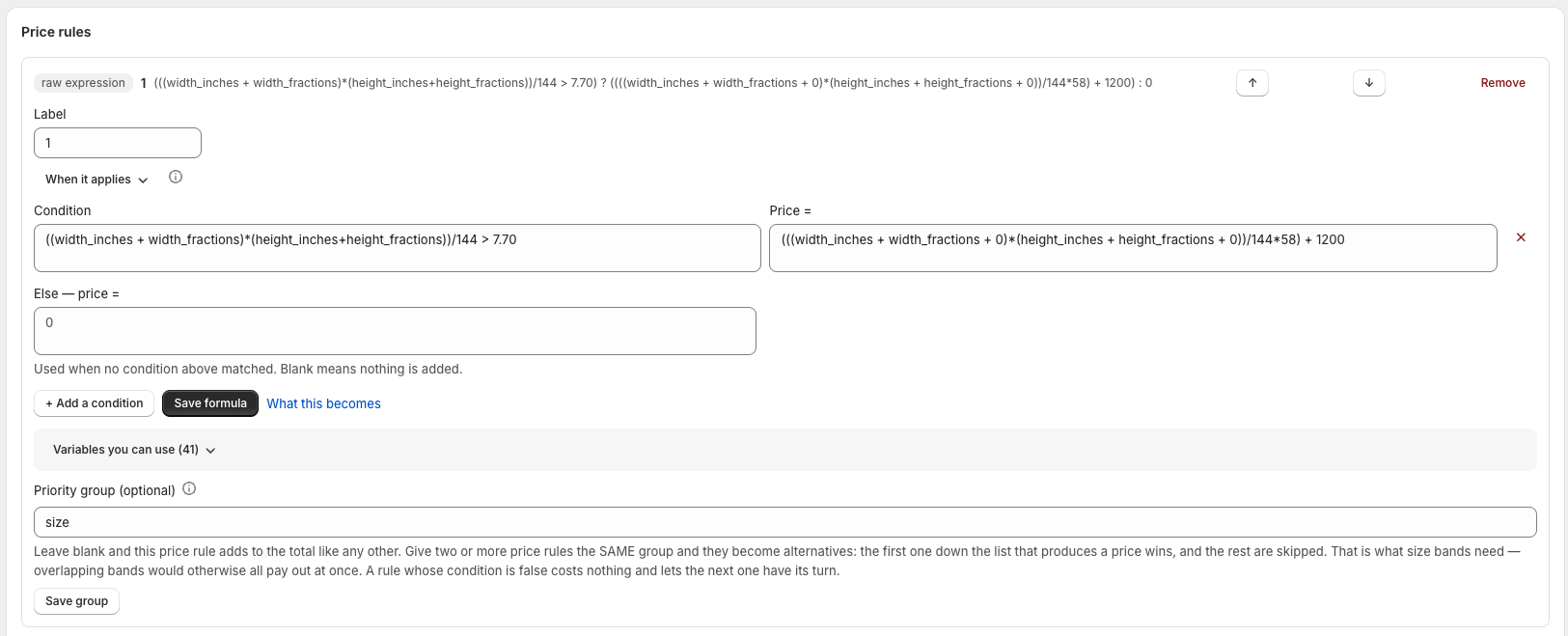
By default every rule that applies adds to the total. Size bands break that: if you write "area up to 1.25 → $729", "area up to 2.5 → $890" and "area up to 4 → $1,040", then a 2 m² blind satisfies the second and the third, and the shopper is charged for both.
Give two or more rules the same group and they become alternatives: the first one down the list that produces a price wins, and the rest are skipped. That is what bands need.
Leave the group blank and a rule behaves exactly as before.
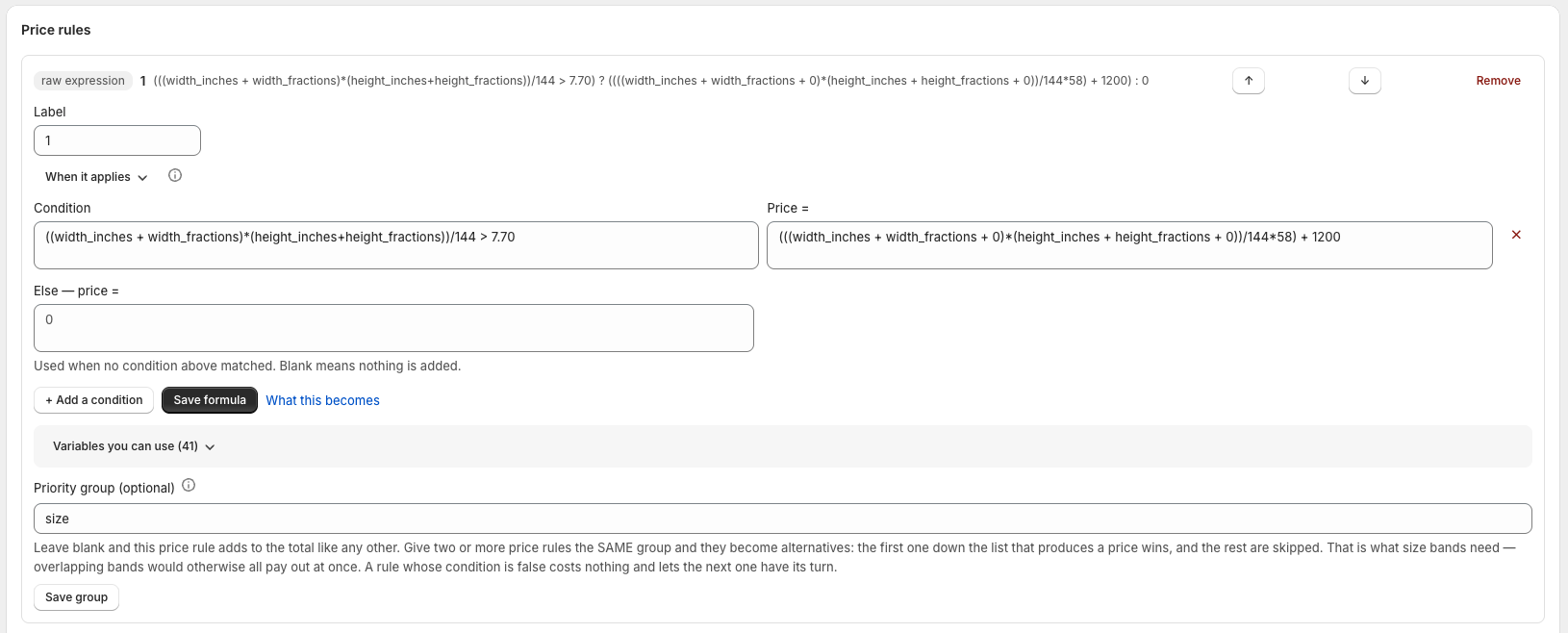
Worth knowing: a formula that reads a dimension nobody has entered yet sees it as 0, and 0 satisfies the smallest band. That is how an untouched form can show a real-looking price. Wrap band formulas so they only pay out once the sizes are entered, and use the test panel below with an empty configuration to check what a shopper sees before they touch anything.
Only when it applies
Any rule can be limited with conditions ("only when Control type is motorised"). A rule with no conditions always applies.
Per-choice prices
Simple surcharges often don't need a rule at all — give the choice itself a price in the options editor ("Sunscreen 5% · +$15"). These work on every plan; rules require Pro.
Validation rules
Sometimes a configuration shouldn't be sold at that price — or at all:
- Block — stops checkout with your message ("Minimum width is 30 cm").
- Adjust price — allows it but adds a surcharge (oversize fee).
Each validation rule chooses its own behavior.
Test before you publish
The test panel on the Pricing page evaluates your draft rules: pick sample selections, click Compute price, and you'll see the full breakdown — base, each charge, and any blocks. Nothing you do here affects your storefront.
Drafts and publishing
Your storefront only ever uses published prices:
- Click Edit prices — you get a draft copy of the current version.
- Change whatever you like. Shoppers still see the old prices.
- Click Publish — the new version goes live immediately, everywhere.
If you leave a draft unpublished, the app reminds you on the Home screen and at the top of the Pricing page. Old versions are kept, so an order always records exactly which price version it used.